
From zero to autonomous AI team in minutes
Sutra is designed to be the simplest way to get AI agents working for you. Here's exactly how it works — from installation to your first automated workflow.
What you'll need
Three things. That's it. If you have a modern computer, you're probably already set.
A Computer
Mac, Windows, or Linux. Sutra runs on all three. You'll need at least 4 GB of free RAM.
RequiredDocker Desktop
Docker handles all the setup for you — the database, background services, everything. One install and you're done.
RequiredAn AI API Key
From OpenAI, Anthropic, Google, or others. Or skip this entirely and use Ollama to run free AI models locally.
Optional with OllamaInstall with a single command
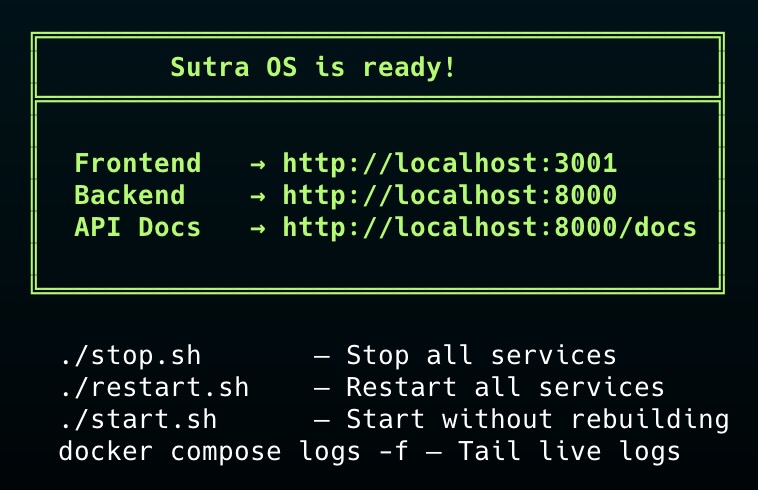
Clone the project and run the install script. It pulls everything you need, sets up Docker containers, and creates your configuration file. No manual setup required.
                            # Clone the project

                            $ git clone https://github.com/datar-gaurav/sutra-os.git

                            $ cd sutra-os


                            # Run the installer

                            $ ./install.sh


                            # That's it. Open your browser.
Automatic Configuration
The install script creates your environment file and asks for your API keys. Paste them in and you're configured.
Everything Included
Database, cache, background workers, API server, and dashboard — all start automatically inside Docker.
Set up your AI API keys
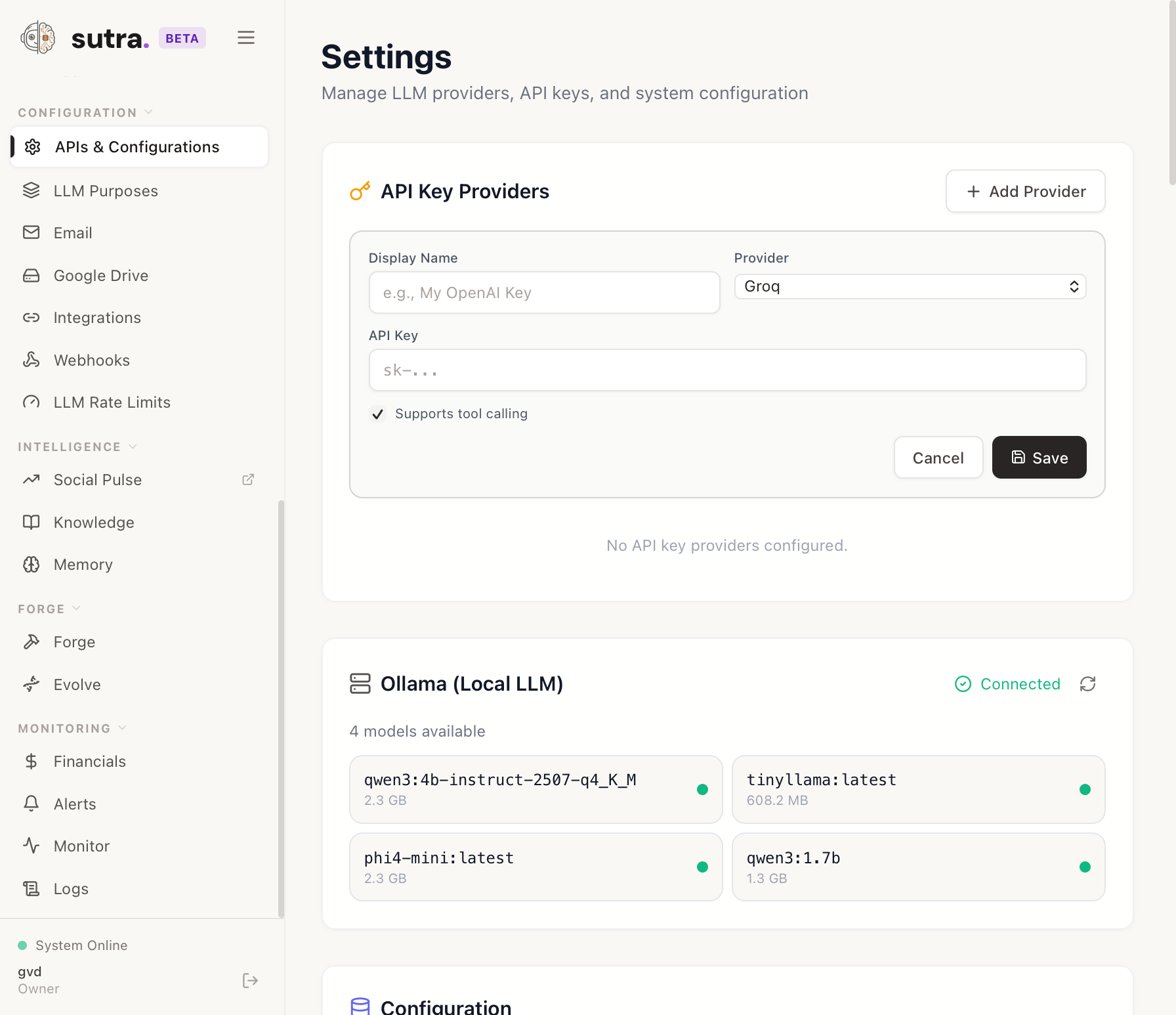
Navigate to http://localhost:3001/, register yourself and head to the Settings page and add your API keys. Sutra supports every major provider — OpenAI, Anthropic, Google Gemini, Groq, and more. Or skip this entirely and use Ollama to run powerful AI models for free, locally on your machine.
All Major Providers
Add keys from OpenAI, Anthropic, Google, Groq, Mistral, or any OpenAI-compatible endpoint. Switch between them any time.
Run Locally with Ollama
No API key? No problem. Connect Ollama and run Llama, Mistral, Qwen, or any open model free on your own hardware.
Keys Stay On Your Machine
Your API keys are stored locally in your environment file and never sent to any third-party server — only directly to the AI provider.
Budget Controls
Set monthly spend limits per provider. Sutra tracks token usage in real-time and alerts you before you hit your cap.
Create a Purpose — define your model strategy
A Purpose is a named routing profile that defines which AI models to use and in what priority order. Instead of hard-coding a model into every agent, you assign a Purpose. When the primary model is unavailable or overloaded, Sutra automatically falls back to the next one — zero downtime, zero manual intervention.
Named Profiles
Create purposes like “All Purpose”, “Coding”, or “Local First”. Each one bundles a list of models ranked by preference.
Automatic Fallback
If P1 is down or rate-limited, Sutra silently tries P2, then P3. Your agents keep working without you lifting a finger.
Task-Optimised Routing
Use a fast, cheap model for simple tasks and a powerful one for complex reasoning — just by picking the right Purpose for each agent.
Mix Any Provider
Combine cloud APIs and local Ollama models in the same priority list. Run local-first for privacy, fall back to the cloud when needed.
One change, every agent. Update a Purpose and every agent assigned to it instantly picks up the new model strategy — no need to edit each agent individually.
Create your first AI agent
Open the dashboard and create an agent. Give it a name, a role, and tell it what it should do. Assign a Purpose for its model strategy, pick which tools it can use, and it's ready to work.
Choose a Role
Content writer, research analyst, customer support, project manager — or make up your own. You define what the agent does.
Assign Tools
Give your agent access to Gmail, Slack, web search, GitHub, spreadsheets, or any of 30+ built-in integrations.
Use Templates
Not sure where to start? Pick from ready-made agent templates that cover the most common use cases.
Assign a Purpose
Select the Purpose you created and the agent inherits the full model priority strategy — with automatic fallback built in.
Build automated workflows
Once you're comfortable with individual agents, connect them into workflows. The visual builder lets you design multi-step automations by dragging and dropping — no code needed.
Visual Canvas
Drag nodes onto a canvas and draw connections between them. Each node is a step: an AI call, a decision point, a tool action, or a human approval.
If/Then Logic
Route work based on conditions. "If the sentiment is negative, escalate to a human. If positive, send a thank-you email."
Loops
Process a list of items automatically. Upload 50 resumes and have an agent screen each one, scoring and summarizing the results.
Human Checkpoints
Insert approval gates at any point. The workflow pauses, you review and approve, then it continues. You're always in control.
Let your agents work as a team
Create multiple agents and let them collaborate. Set up structured discussions where agents brainstorm, debate, or review each other's work before delivering a final result.
5 Discussion Formats
Brainstorm, debate, standup, review, and collaborate. Each format structures how agents communicate to get the best results.
Org Structure
Organize agents into teams with managers and reports. Work flows through the hierarchy naturally, just like a real organization.
Monitor everything from one dashboard
The dashboard gives you a complete view of what your agents are doing. Track conversations, review pending approvals, monitor costs, and see full audit logs of every action taken.
38+ Dashboard Pages
Agent performance, workflow status, conversation history, budget tracking, and system health — all in one place.
Approval Queue
High-risk actions go to a review queue. Approve or reject with one click. Nothing sensitive happens without your say-so.
Cost Tracking
See exactly how much each agent and workflow costs in API usage. Set budgets and get alerts before limits are reached.
Full Audit Trail
Every decision, tool call, and output is logged. Review the complete history of what happened and why.
See it in action
Here are a few real examples of what people build with Sutra — from simple tasks to complex multi-agent workflows.
Automated Email Triage
An agent monitors your inbox, categorizes incoming emails, drafts replies for routine questions, and flags urgent items for your attention.
- → Email arrives in Gmail
- → Agent reads and classifies it
- → Routine: drafts reply for your approval
- → Urgent: sends you a Slack alert
Content Pipeline
A research agent gathers information, a writer agent creates the draft, and a reviewer agent checks for quality — all automatically.
- → You provide a topic
- → Researcher finds sources and data
- → Writer creates the article draft
- → Reviewer suggests improvements
Customer Feedback Analysis
An agent pulls reviews from multiple sources, identifies common themes, and creates a weekly summary with action items.
- → Scrapes reviews from web sources
- → Analyzes sentiment and themes
- → Creates summary in Google Sheets
- → Posts highlights to Slack
Code Review Assistant
Forge reviews pull requests on GitHub, checks for common issues, suggests improvements, and can even write the fix itself.
- → New PR is opened on GitHub
- → Agent reviews code changes
- → Posts review comments
- → Optionally writes fix PRs
Weekly Report Generator
At the end of each week, an agent compiles data from your tools, writes a summary, and emails it to your team.
- → Pulls data from Sheets and Jira
- → Summarizes progress and blockers
- → Generates formatted report
- → Emails to the team via Gmail
Competitive Intelligence
Agents continuously monitor competitor websites, news, and social media, alerting you when something important changes.
- → Scheduled web scraping of competitors
- → AI compares changes to last scan
- → Flags significant updates
- → Delivers briefing via Slack or email
Common questions
Quick answers to the things people ask most.
Three commands. Five minutes.
Your AI team is running.
Clone the repo, run the installer, and open your browser. Everything else is handled for you.